
Patient Signature and Consents User Guide
The Patient Signature and Consents feature allows practices to electronically present, collect, and manage patient consent forms through the EHR or Patient Portal. This supports compliance and audit readiness while providing a simple signing experience for patients and staff.
This guide explains how to accept, sign, track, and manage patient consent forms within your practice workflow.
Patient Signatures and Consents in EHR
If your practice is not utilizing the Patient Portal, patients can still accept and sign consent forms directly through the EHR. During the visit, staff can access and present the necessary consent forms for the patient to review and complete.
To allow patients to accept and sign forms through the EHR, follow the steps below:
- Log in to your EHR account.
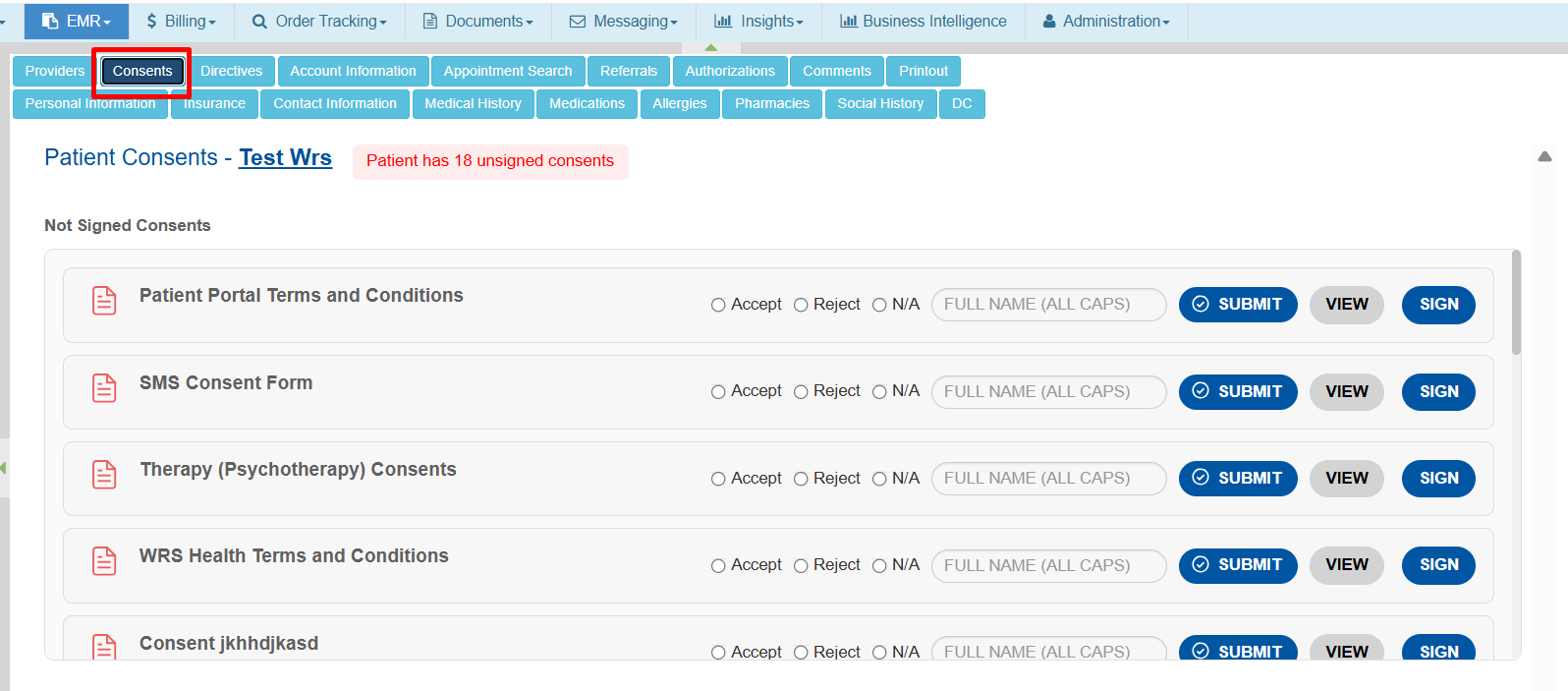
- Search for the patient, then double-click the patient’s name to open Patient Management.
- Click Consents.

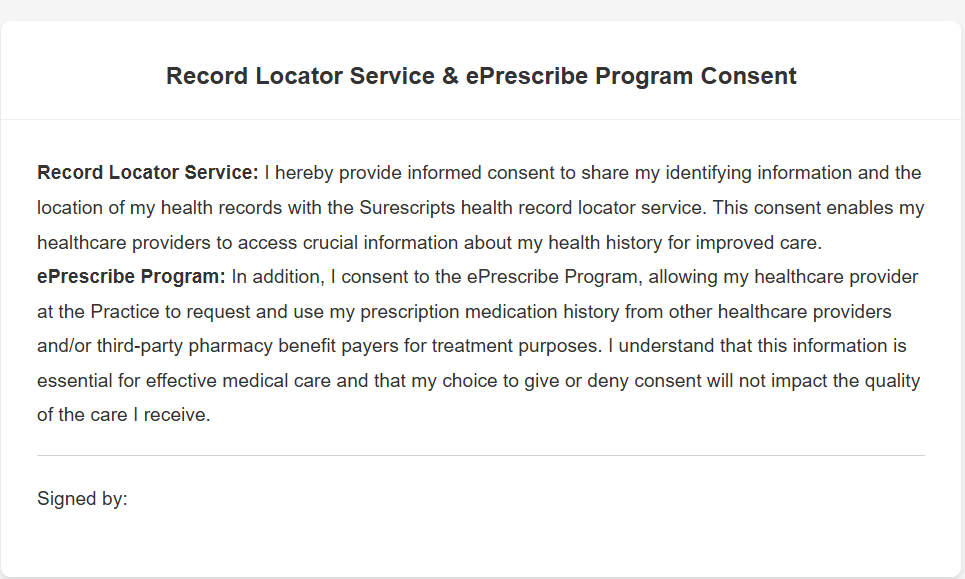
- Select the applicable consent form to view its details.
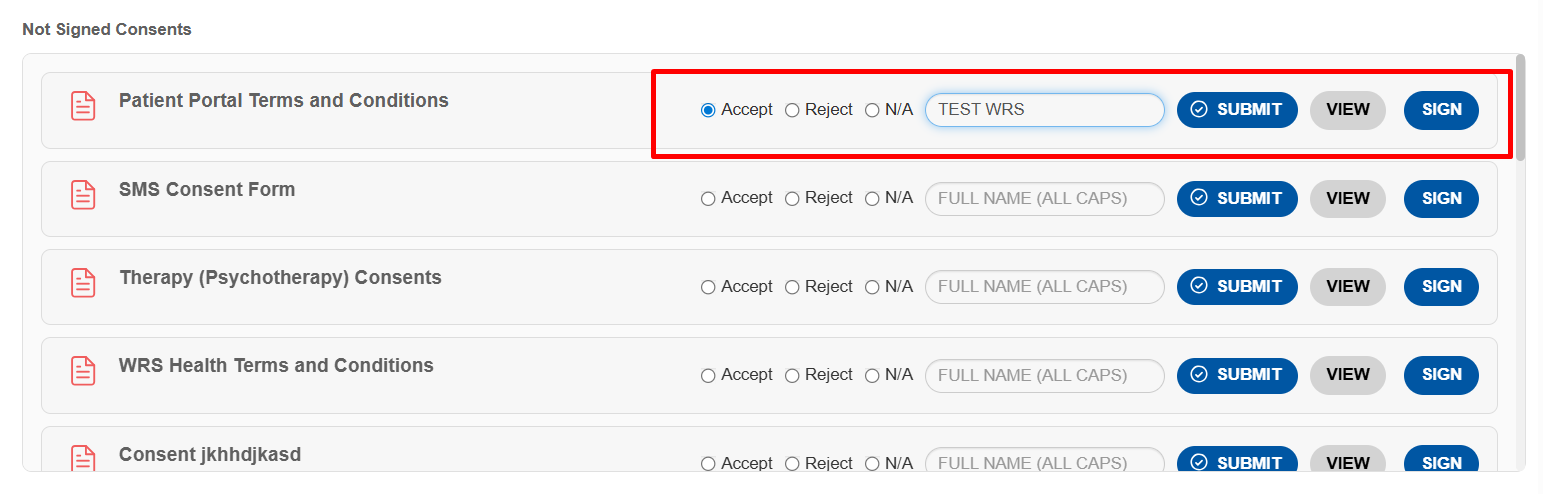
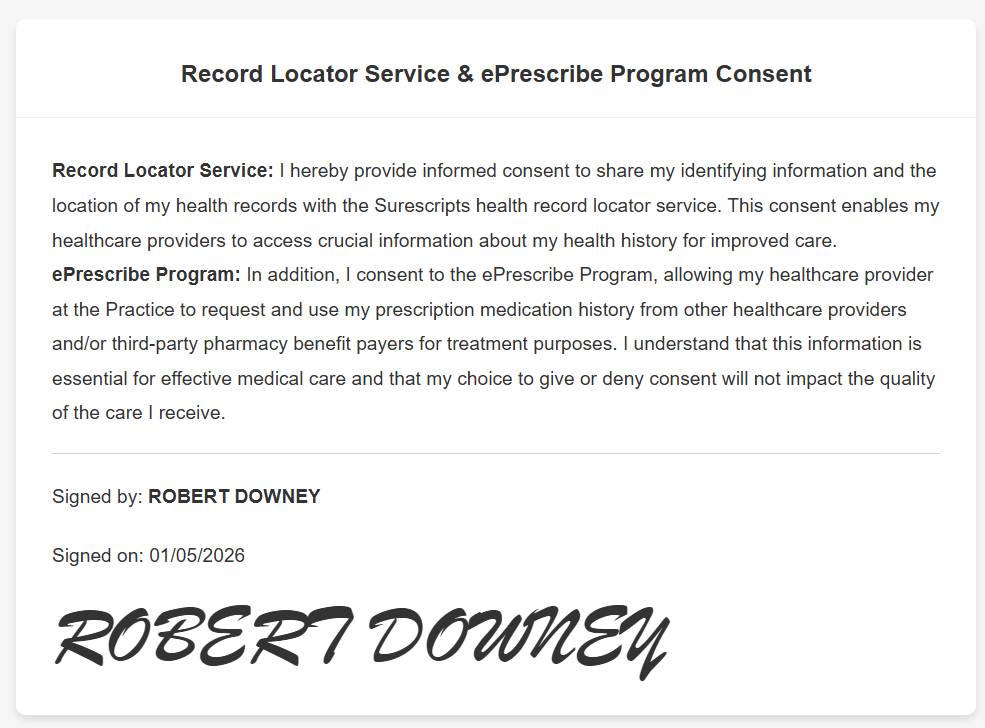
- Enter the patient’s full name in capital letters.
- Click Submit to confirm the patient’s agreement to the policy.
💡 Note: Consent may also be obtained by selecting Sign, allowing the patient to review the consent form prior to submission.
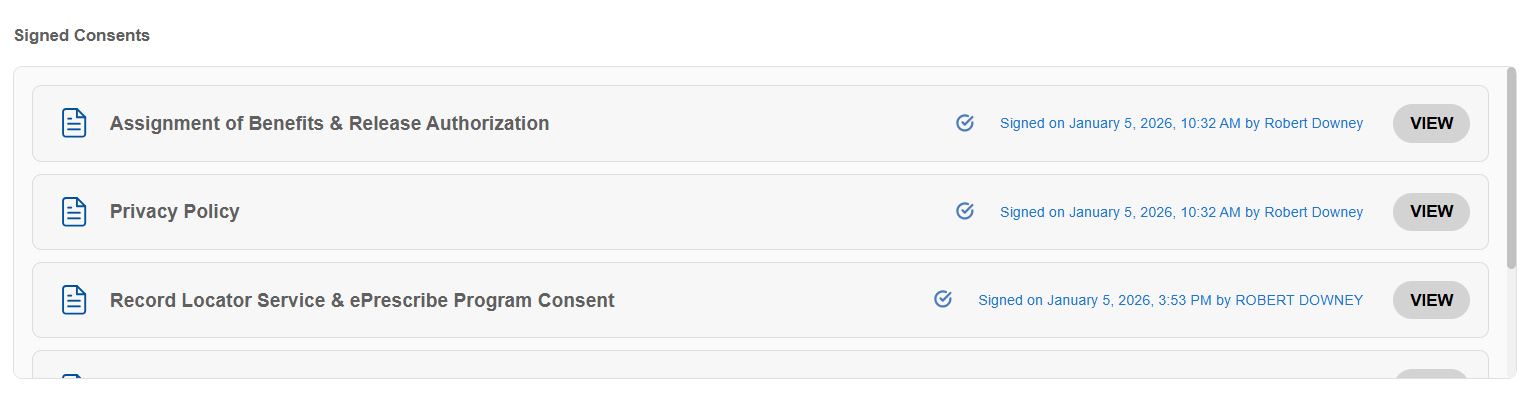
Upon submission, the consent form will be recorded in the Signed Consents section with a timestamp.

- View to check details.

Track and Manage Patient Consent Forms
To track and manage patient consent forms, follow the steps below:
- Log in to your EHR account.
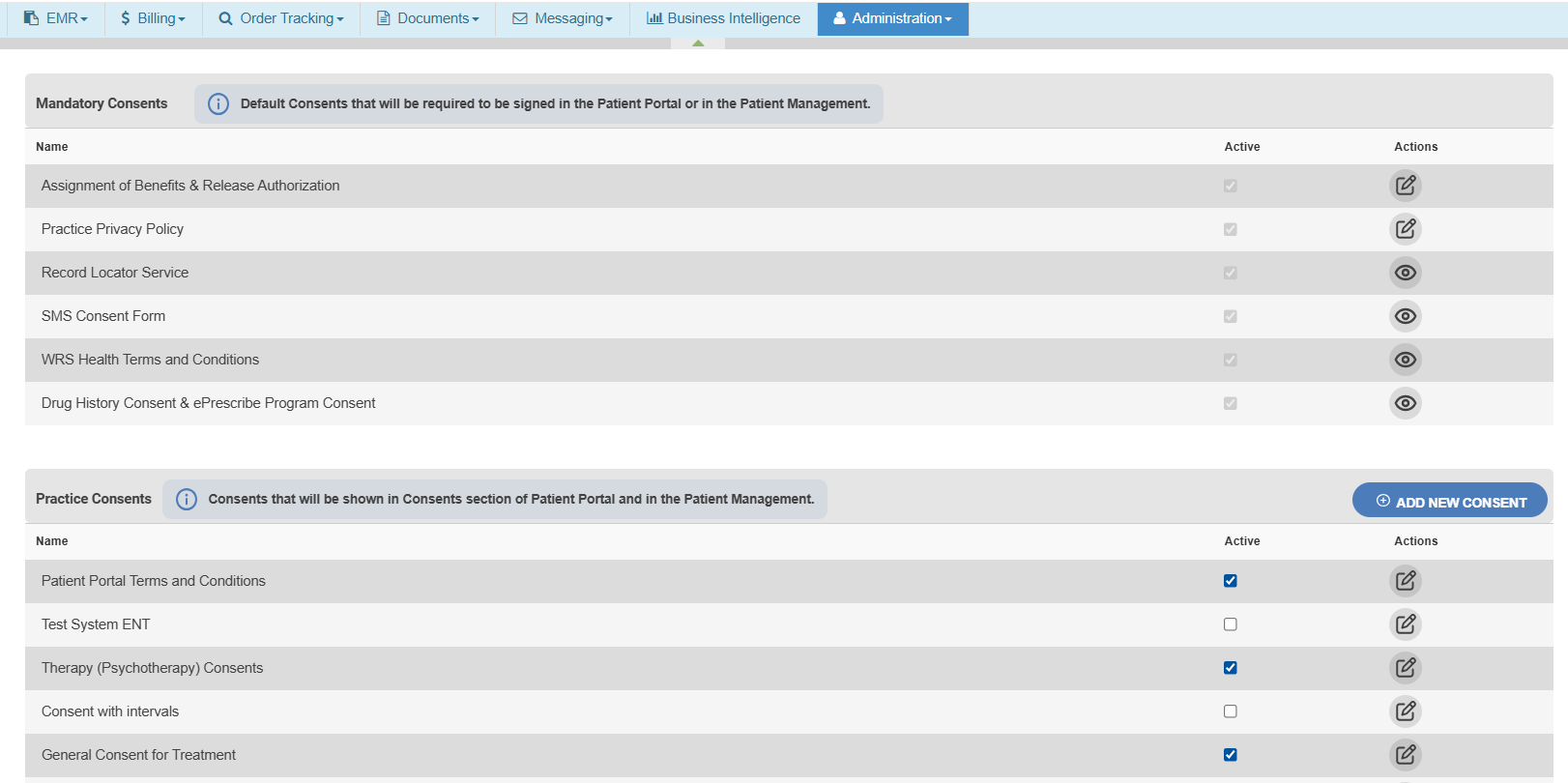
- Navigate to Administration → Practice Setup → Patient Consents Management.
Consent forms are organized into two main sections:
- Mandatory Consents:
Required consent forms used in the patient registration workflow within the Patient Portal or EHR. These must be completed as part of patient onboarding and consent collection. - Practice Consents:
Consent forms that can be customized by the practice for language or workflow needs. These are typically available under Patient Portal → Documents → Consents.
- Mandatory Consents:
- Manage Consent Form Actions
Add a New Consent
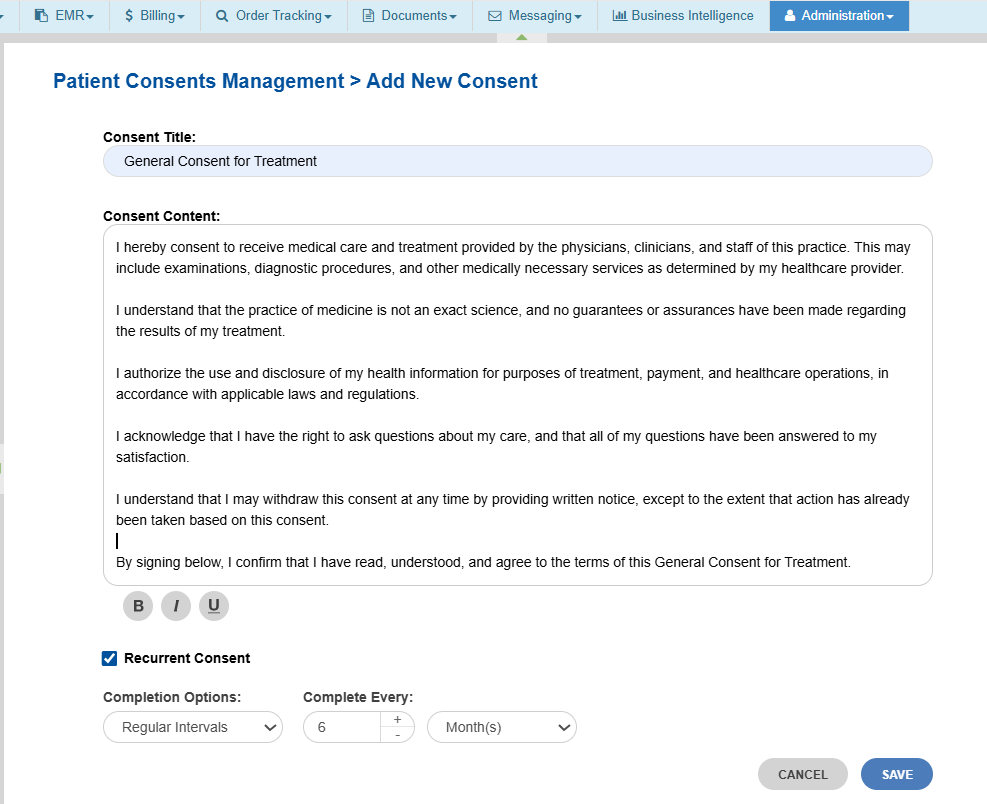
- Click Add New Consent to create a new consent form.
- Provide the consent title and content.
- If the consent is recurring, select Recurrent, then provide the Completion Options and set the recurrence interval.
- Click Save. The saved consent will appear in the consent list and can be activated for patient use.
Activate or Deactivate a Consent
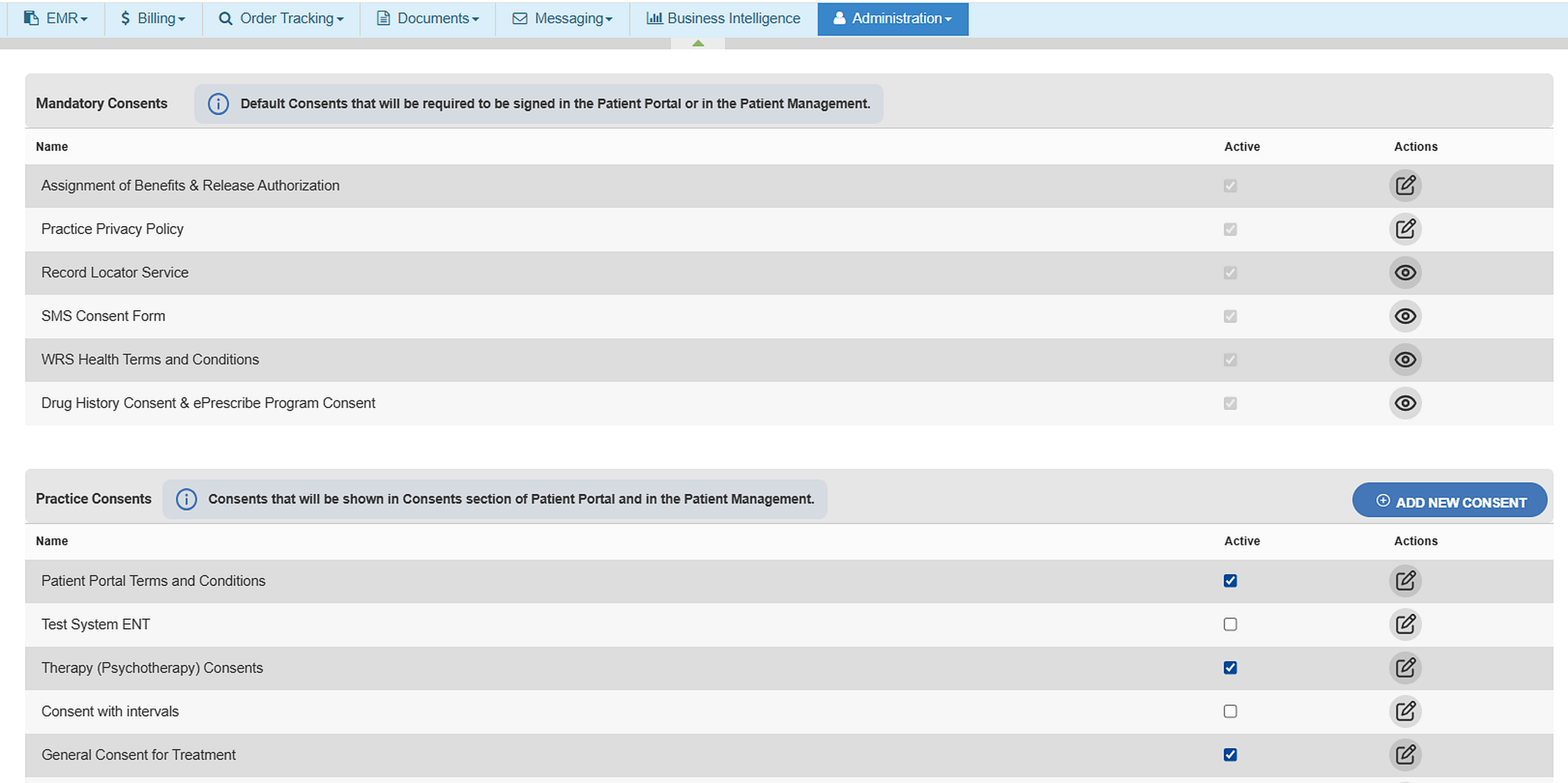
- Use the Active/Inactive checkbox to control whether a consent form is available for patient use.
💡 Inactive consents will no longer appear during patient registration or consent collection.
Edit an Existing Consent
- Click Edit to modify an existing consent form.
- Update the content and formatting as needed.
💡 For system-wide consents, content updates may be restricted.

Still no luck? We can help!
Contact us and we'll get back to you as soon as possible.
Submit a Request