
Provider-Specific Default Note Configurations
Providers can set their default Note Format based on their documentation needs. They can also customize which additional Note Formats appear in their Notes dropdown, while the existing default note behavior remains unchanged.
Notes
The existing note format inheritance from Administration → Practice Setup → Edit Specialty is being retained to preserve current functionality. In addition, note formats configured by WRS Admin are now made available in the EHR based on the provider’s specialty taxonomy, giving them more flexibility and a wider selection when setting their preferred note format.
Workflow
- Set Default Note Format
- Customise Note Formats Dropdown
Set Default Note Format
Note formats configured by WRS Admin are available in the EHR based on provider specialty taxonomy. To make these formats available during documentation, Practice Admins must enable them in Note Format Management.
Steps:
- Login to your EHR.
- Go to Preferences → EMR Preferences.
- Select a Note Format from My Default Note Format dropdown.
Notes
The list of available Note Formats is based on the provider’s specialty taxonomy and the Note Formats enabled by the Practice Administrator under Administration → EMR Setup → Note Format Management.
- Save your changes.
The selected Note Format will automatically apply each time you create a new note for a patient encounter.
Customise Note Formats Dropdown
During a patient encounter, when the provider creates a new note as part of their EMR workflow, they can add additional Note Formats to appear in their Notes dropdown.
- From Today’s Appointment List, hover over the patient’s name.
- Open or create a new encounter note.
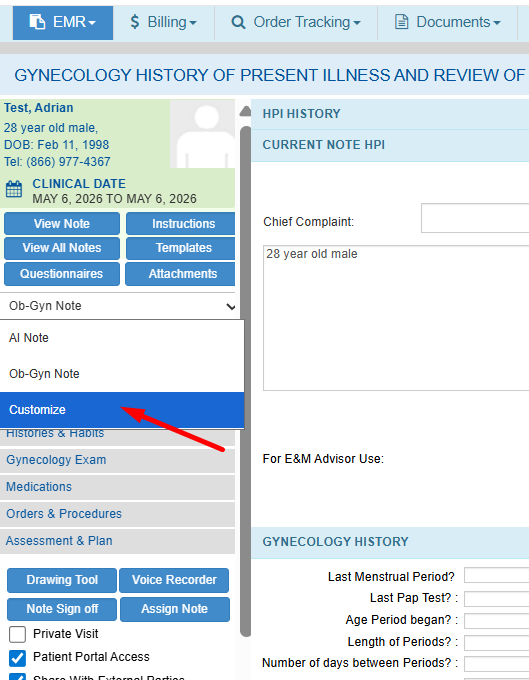
- Navigate to the notes dropdown → select Customise.
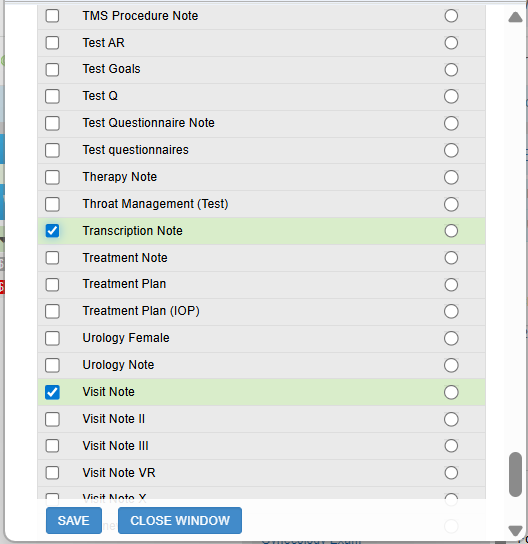
- From the available list, select the Note Formats that are relevant to your usual encounters.

- You can also set or change your default Note Format from this page by selecting the preferred default option.
Notes
The list of available Note Formats is based on the provider’s specialty taxonomy and the Note Formats enabled by the Practice Administrator under Administration → EMR Setup → Note Format Management.

- Save your changes.
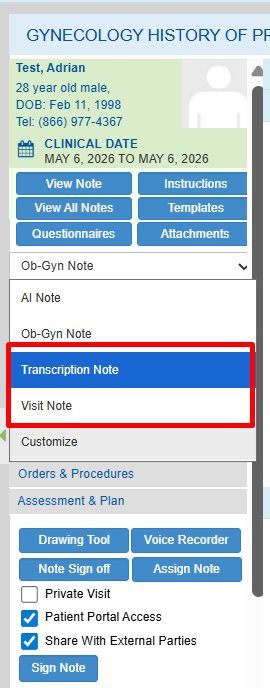
Selected Notes will then be added to the Notes Dropdown each time the provider creates new encounter notes.

Still no luck? We can help!
Contact us and we'll get back to you as soon as possible.
Submit a Request