
Payments in the Check-In Module
When Stripe Payments is enabled for your practice, the Check-In process includes a secure option to review outstanding balances and make co-payments using your credit or debit card. Follow the steps below to complete your check-in and payment quickly and safely.
STEPS
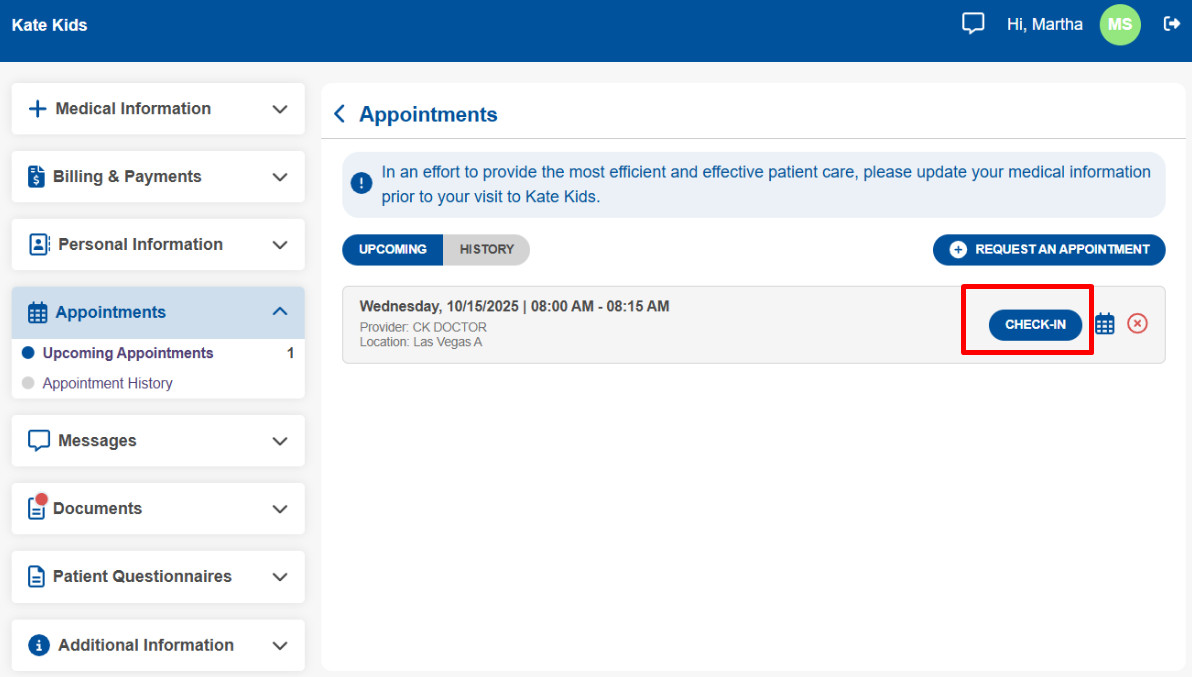
1. Start the Check-In
- On the day of your visit, the Check In button appears next to your appointment in the patient portal. Click it to begin the check-in process.
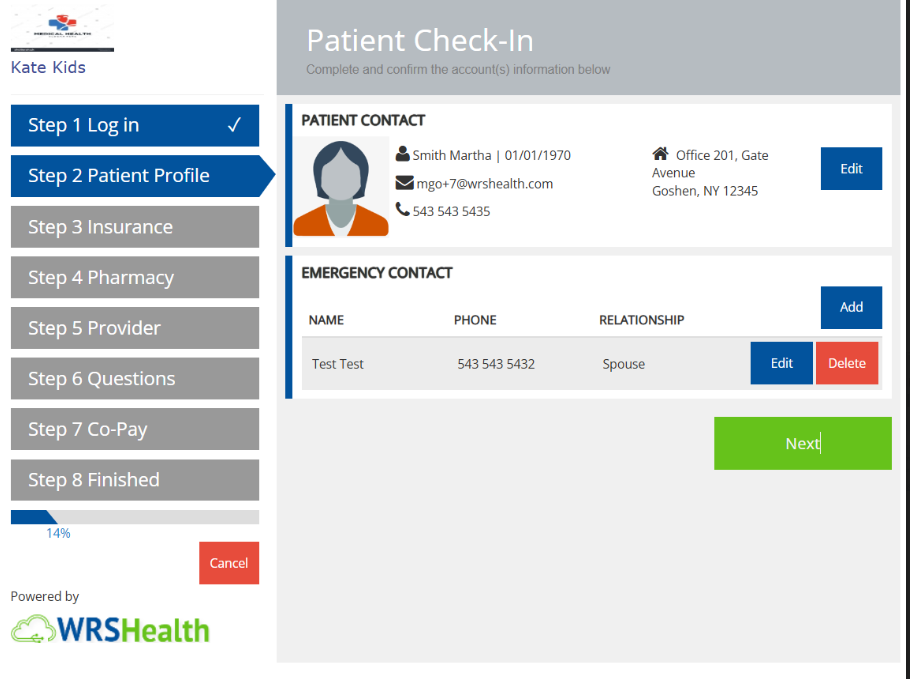
2. Complete Required Forms
- Follow the guided steps to review and update your Patient Profile, Pharmacy, Provider Information, and complete the Patient Intake Questionnaire.
3. Proceed to Co-Pay/Payments
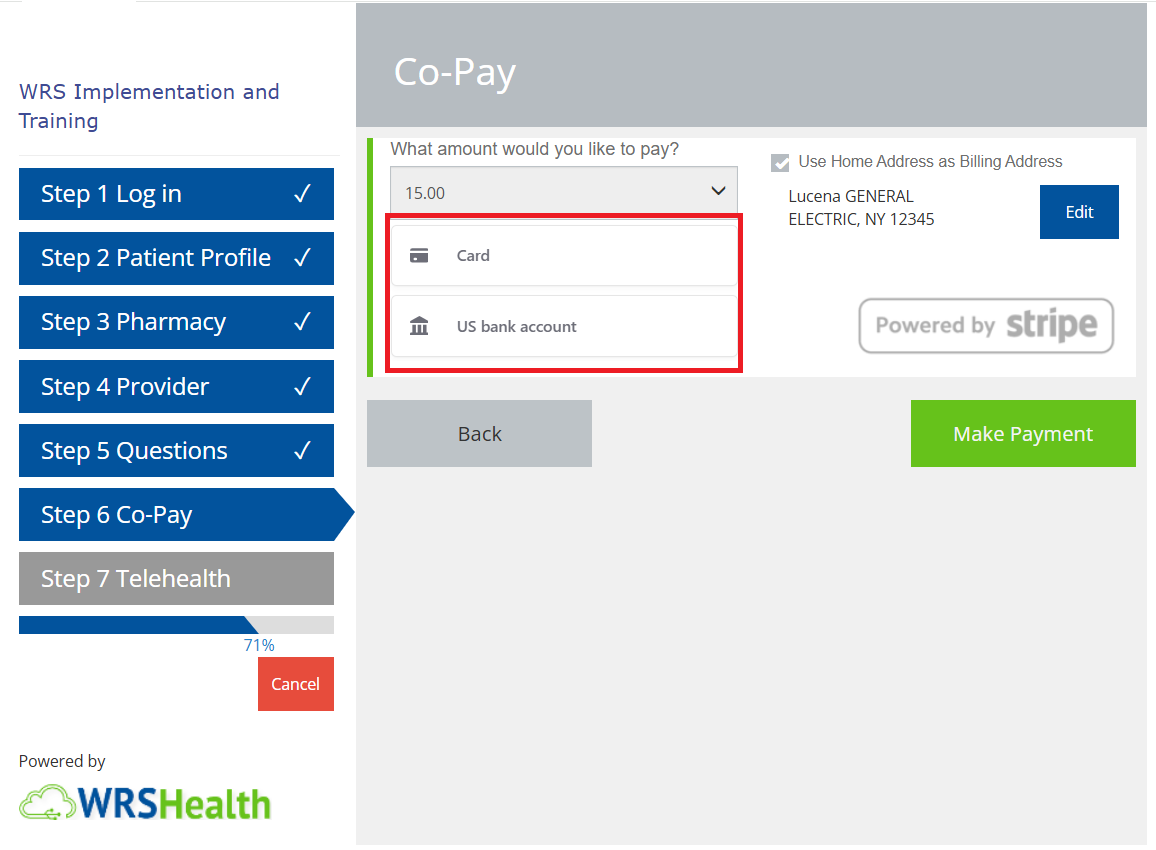
- Review your outstanding charges and enter the amount you wish to pay.
- Under Payment Method, select one of the available options:
- Credit Card
- ACH Bank Transfer
- Google Pay or Apple Pay
Paying with a Credit Card
- Choose one of the following:
- Saved Credit Card – Use a previously saved card for quick payment.
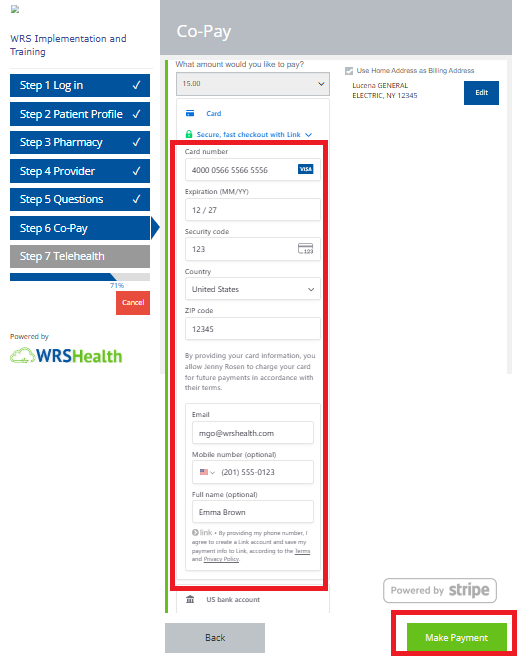
- New Credit Card – Enter your card details exactly as they appear on the card.
- For New Credit Card, enter your card account details.

➜
- Click Make Payment to complete transaction.
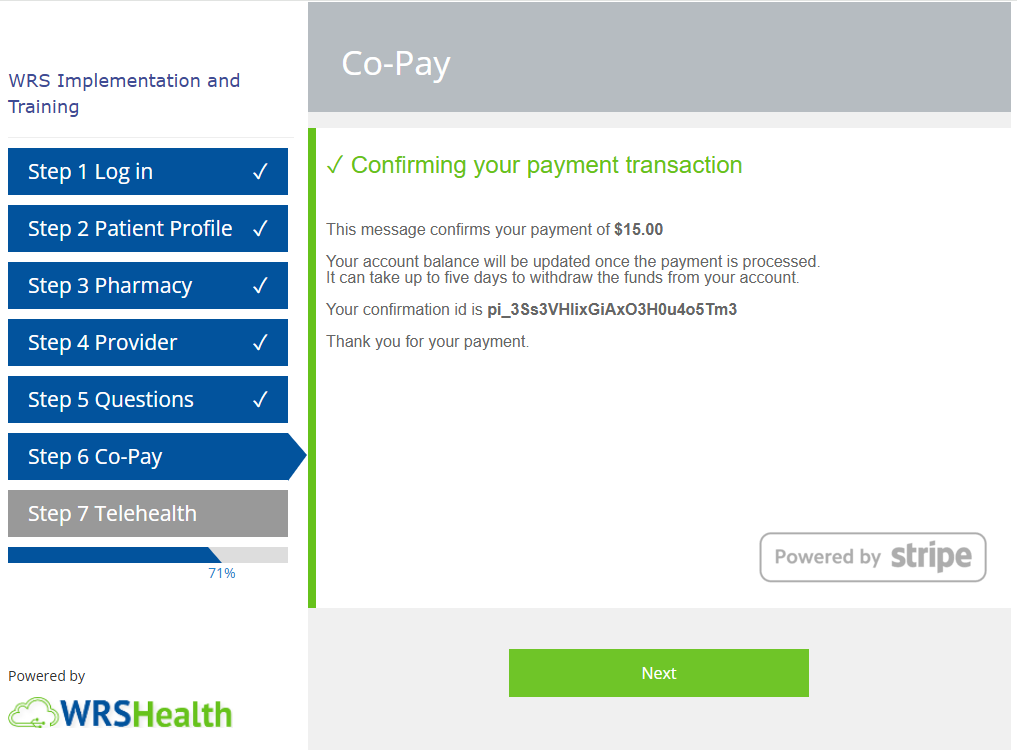
- You will see an on-screen confirmation and receive an email receipt once the payment is processed.
Paying with ACH (Bank Transfer)
ACH payments allow you to pay directly from your bank account.
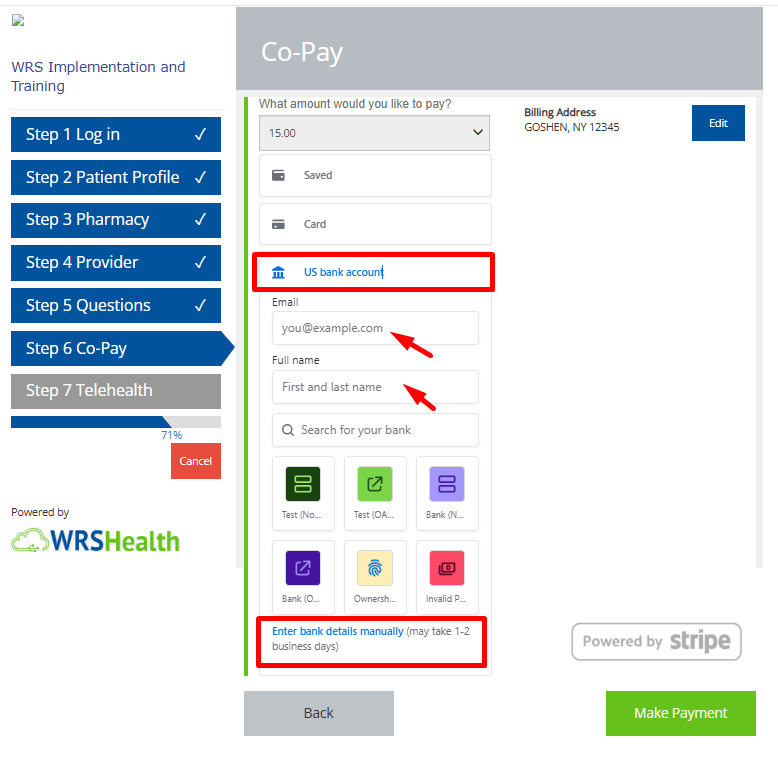
- Select ACH (Bank Transfer) as the payment method.
- Enter your email address and full name.
- Search for and select your bank or Enter Bank Details Manually at the bottom of the page.
➜
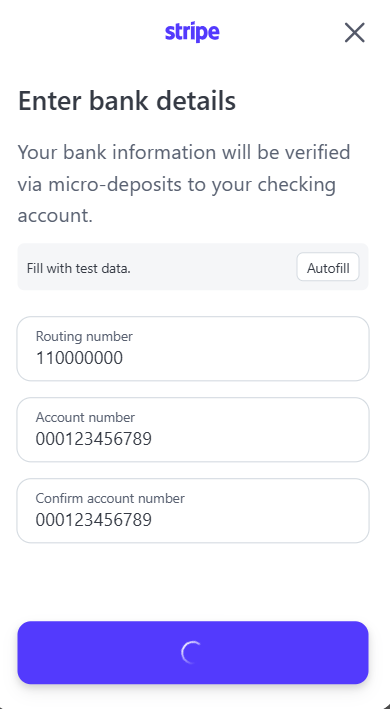
- Enter the required bank details:
- Routing Number
- Account Number
- Confirm your account and Submit.
- Click Make Payment to submit your request.
- You will see an on-screen confirmation and receive an email receipt once the payment is processed.
Notes
- ACH processing time: Payments may take 1–3 business days to complete.
- Pending status: Your payment may appear as Pending until processing is finalized.
- Email confirmation: You will receive an email once your payment has been successfully submitted.
Paying with Google Pay
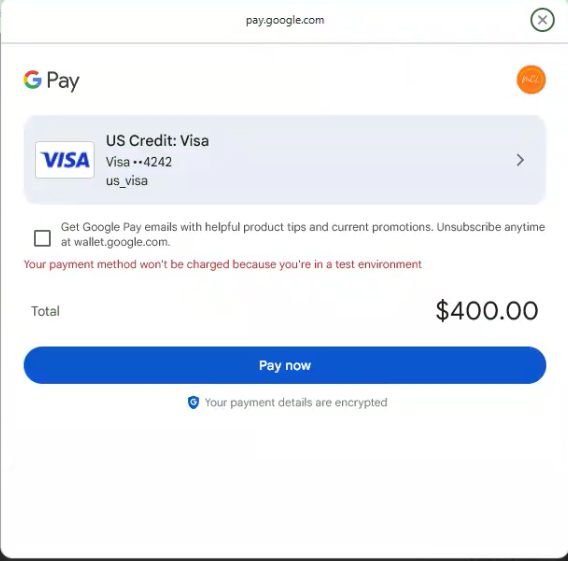
Google Pay enables quick payments using your saved Google payment methods.
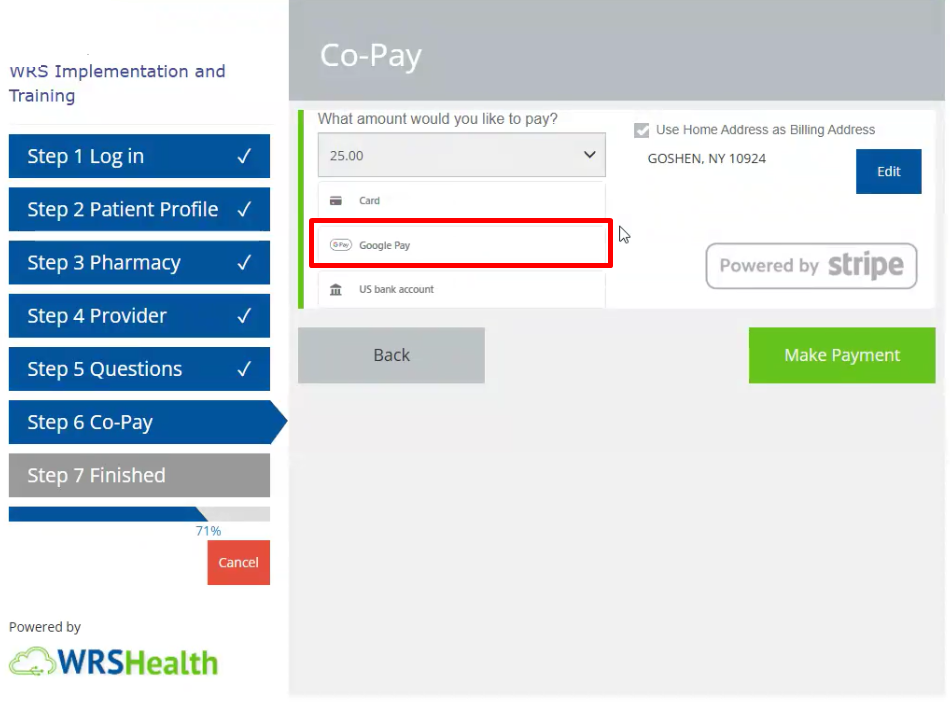
- Select Google Pay as the payment method.

- Choose a saved card or payment option from your Google Pay wallet.
- Review and click Pay Now complete transaction.
➜
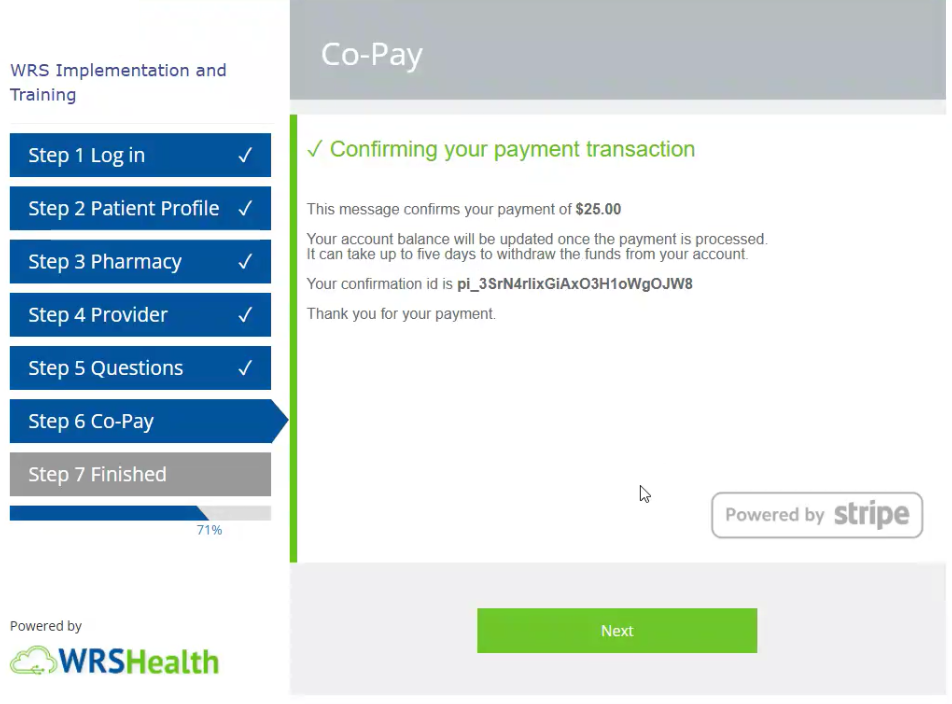
- After completion:
- A confirmation message will appear on screen.
- An email receipt will be sent to your registered email address.
Notes
-
- Apple Pay & Google Pay: Both follow a similar checkout process and are displayed automatically on supported devices and browsers.
4. Proceed to your Telehealth Visit.
Once check-in is complete, you can proceed to your Telehealth visit at the scheduled time.

Still no luck? We can help!
Contact us and we'll get back to you as soon as possible.
Submit a Request