
Managing Eligibility Modifiers
These guides outline how eligibility modifiers are configured at both at the practice and admin levels to support accurate and consistent 270 eligibility requests.
Configure Eligibility Modifiers in Admin
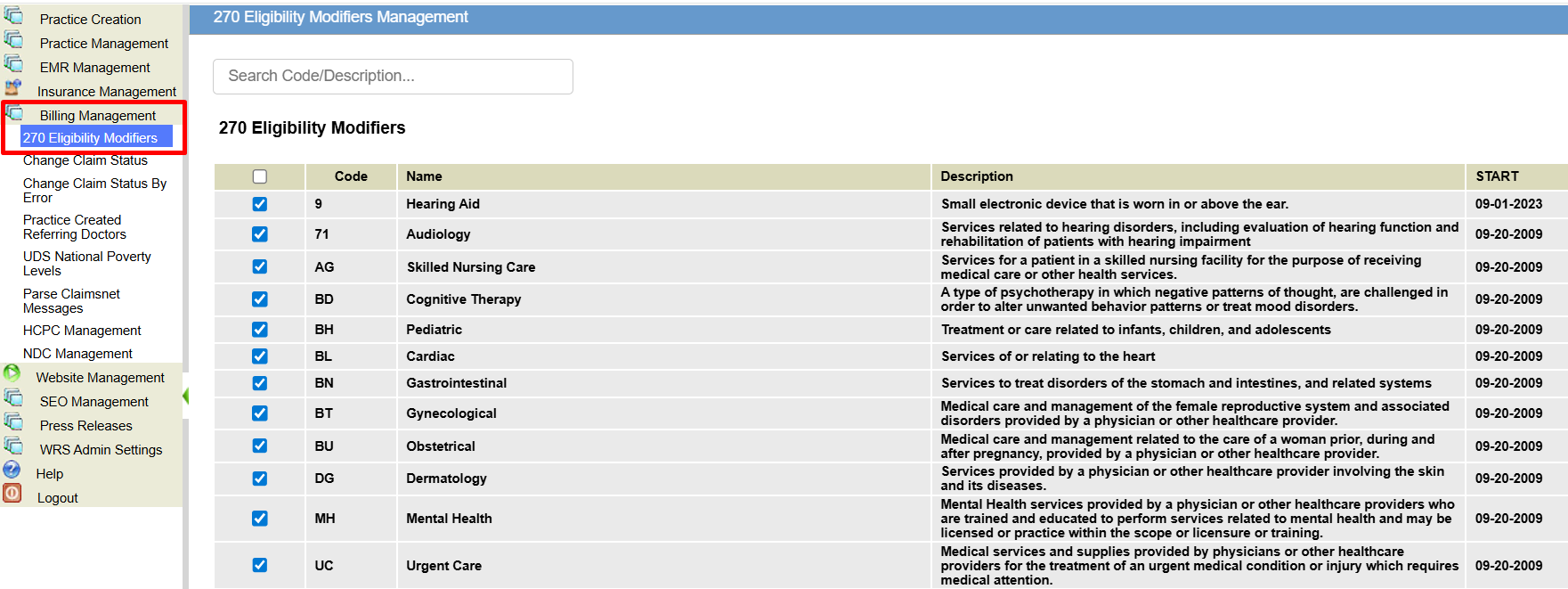
The 270 Eligibility Modifiers page allows system administrators to globally manage which eligibility service type codes are available for practices to use when checking insurance eligibility.
By enabling or disabling modifiers at the system level, admins control which benefit categories practices can select—ensuring consistency, compliance, and appropriate usage across the platform.
STEPS
- Log in to WRS Admin
- Navigate to Billing Management → 270 Eligibility Modifiers.
- You will see a list of all supported X12 service type codes available for eligibility requests.
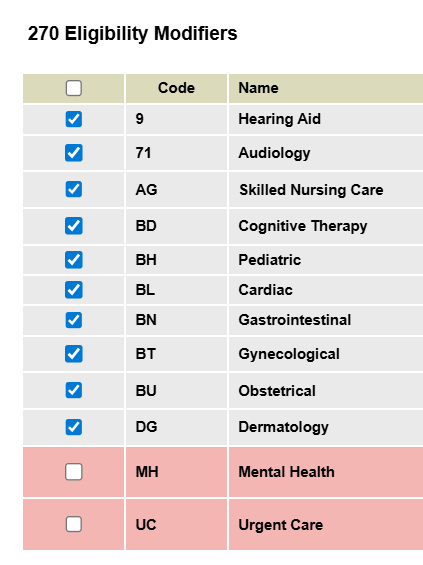
- All service type codes are enabled by default when the page loads.

- Use the toggle or checkbox next to each service type code to enable or disable it globally.
- Enabled codes will be available for practices to select.
- Disabled codes will be hidden from practice-level configuration.

Selecting Eligibility Modifiers in EHR
The Eligibility Modifiers setting allows practice administrators to choose which active eligibility benefit categories apply to their practice’s insurance eligibility requests.
By selecting relevant modifiers—such as Mental Health (MH), Audiology (71), or Hearing Aid (F4)—your practice can retrieve more specific and accurate benefit information during eligibility checks.
STEPS
- Log in to your practice account.
- Navigate to Practice Administration → Billing Setup → Practice Revenue Codes.
- Go to the Add Practice 270 Eligibility Modifiers section.

- Select one or more modifiers to enable, then click Add.
- Selected modifiers will appear in the Existing Practice 270 Eligibility Modifiers list at the bottom of the page.
- To remove a modifier, select it from the list and click Delete.


NOTES
- No changes in the workflow.
- Settings apply at the practice level and can be updated at any time.

Still no luck? We can help!
Contact us and we'll get back to you as soon as possible.
Submit a Request