
Admin Guide: Enable BI & Configure Dashboard Access
This guide explains how to:
- Enable Business Intelligence dashboards for a practice
- Grant access to dashboards based on resource
Enable Business Intelligence for a Practice
Activate BI Dashboards for a specific practice so users can access analytics.
Steps
- Go to Admin → Search for the practices
- Navigate to Account Management
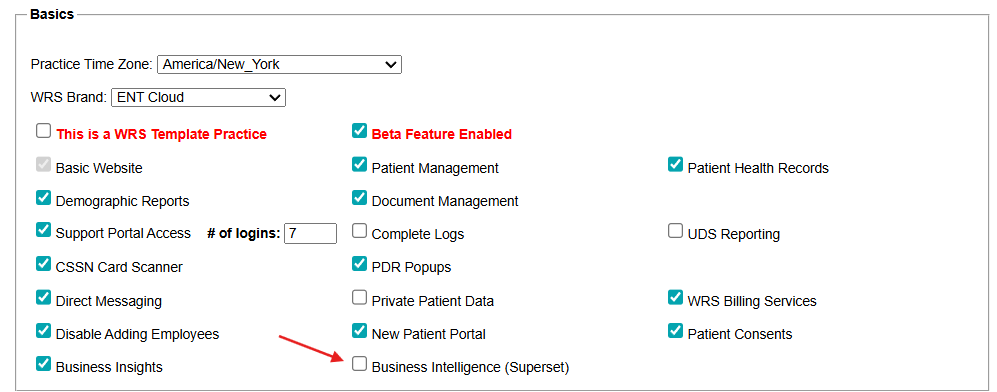
- Navigate to Basics Section
- Select Business Intelligence (Superset)
- Click Save

Results
- Business Intelligence dashboards become available in the navigation menu of the EHR Practice Admin

- Eligible users can now access dashboards (based on user permissions)



Assign Dashboard Access by Resource
Control which dashboards each user can access.
- Go to Administration → Resource Management → Resource Setup
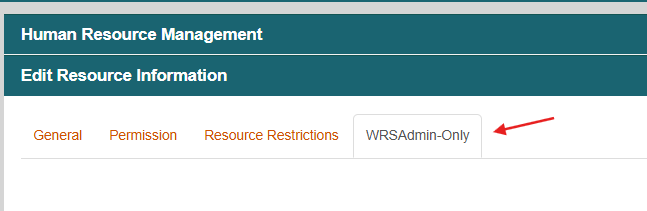
- Navigate to Edit Resource Information
- Navigate to WRSAdmin-Only

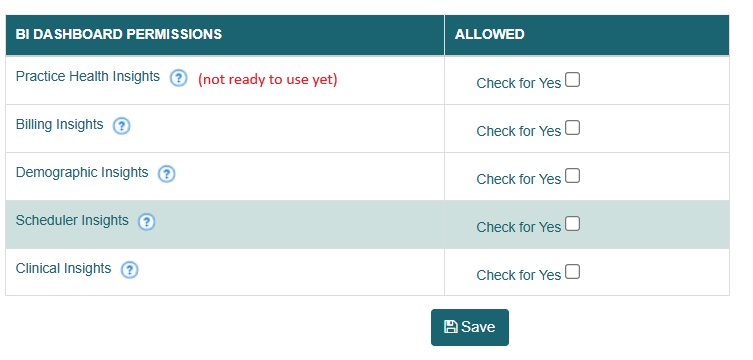
- Locate BI Dashboard Permissions

- Assign access to all or specific authorized dashboards below:
- Billing Insights
- Demographic Insights
- Scheduler Insights
- Clinical Insights
- Click Save.
Important Notes
Practice Health Insights is still under development and should not be used or referenced at this time.
Practice Health Insights is still under development and should not be used or referenced at this time.

Still no luck? We can help!
Contact us and we'll get back to you as soon as possible.
Submit a Request