
| To: | WRS Health Users |
|---|---|
| From: | WRS Development Team |
| Date: | 12/01/2025 |
| Re: | Send Multiple Controlled Prescriptions to the Queue |
Items in This Release
- Send Multiple Controlled Prescriptions to the Queue
This release improves the Delegated Prescription workflow by enabling mid-level providers to send multiple controlled prescriptions simultaneously to their Supervising Provider’s Delegated Prescription Queue. Previously, they could only send controlled medications individually, resulting in a slower and more repetitive process.
What’s new
Mid-level providers with restrictions to certain Schedule Level controlled substances can now multi-select controlled prescriptions and send them to their Supervising Provider’s queue in a single action.
This matches the existing workflow for non-controlled prescriptions and reduces the number of clicks required during delegating tasks.
How to Send Multiple Controlled Prescriptions
- From the Medications page, select the controlled prescriptions you want to send to your Supervising Provider’s queue.
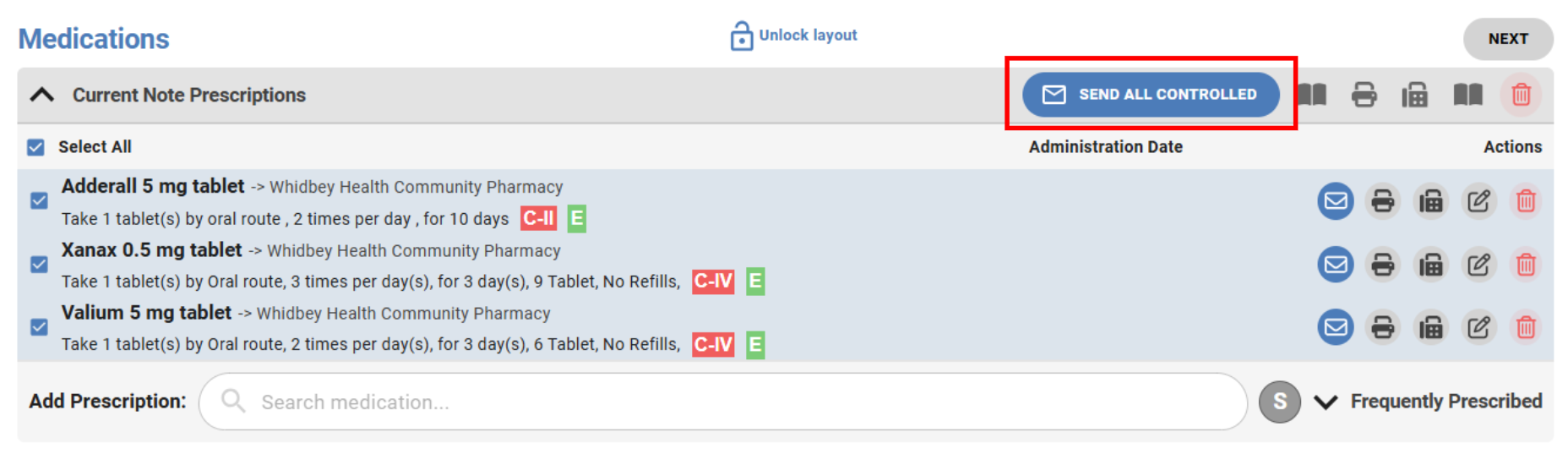
- Click Send Prescriptions, then choose the Send to Delegated Rx Queue.

The selected prescriptions will appear in the Supervising provider’s Delegated Prescriptions queue.
To learn more about the full prescribing process, please review Delegated Prescriptions Queue Guide for Controlled Prescriptions.

If you would like more information, please contact your account manager.
Contact Your Account Manager