
| To: | WRS Health Users |
|---|---|
| From: | WRS Development Team |
| Date: | 04/16/2026 |
| Re: | RxCancel Enhancement Across Prescription Workflows |
Items in This Release
- RxCancel in Delegated Prescription Queue (DPQ)
- RxCancel in Medication Transactions
This release introduces an enhancement that allows providers to cancel sent prescriptions directly from the Delegated Prescription Queues (both Controlled and Non-Controlled) in the EHR, even after notes have been signed.
In the previous workflow, providers could only cancel prescriptions within an open note. Once a note was signed, prescriptions could no longer be canceled, limiting flexibility in managing updates and potentially delaying communication with pharmacies.
With this enhancement, providers can take timely action on prescriptions directly—without reopening notes—supporting safer workflows and better continuity of care.
What’s New
- Cancel sent prescriptions directly from the Delegated Prescription Queue
- Cancel sent prescriptions from the Medication Transactions page
- Perform RxCancel actions even after notes are signed
- Reduce dependency on reopening notes for prescription changes
- Improve visibility and control over prescription status across workflows
Why This Matters for Your Practice
- Enhances patient safety by allowing timely cancellation of outdated prescriptions
- Reduces the risk of duplicate or incorrect medication fills
- Minimizes administrative workload on staff handling prescription changes
- Improves communication with pharmacies for faster and more accurate updates
- Supports better care coordination across the care team
How It Works

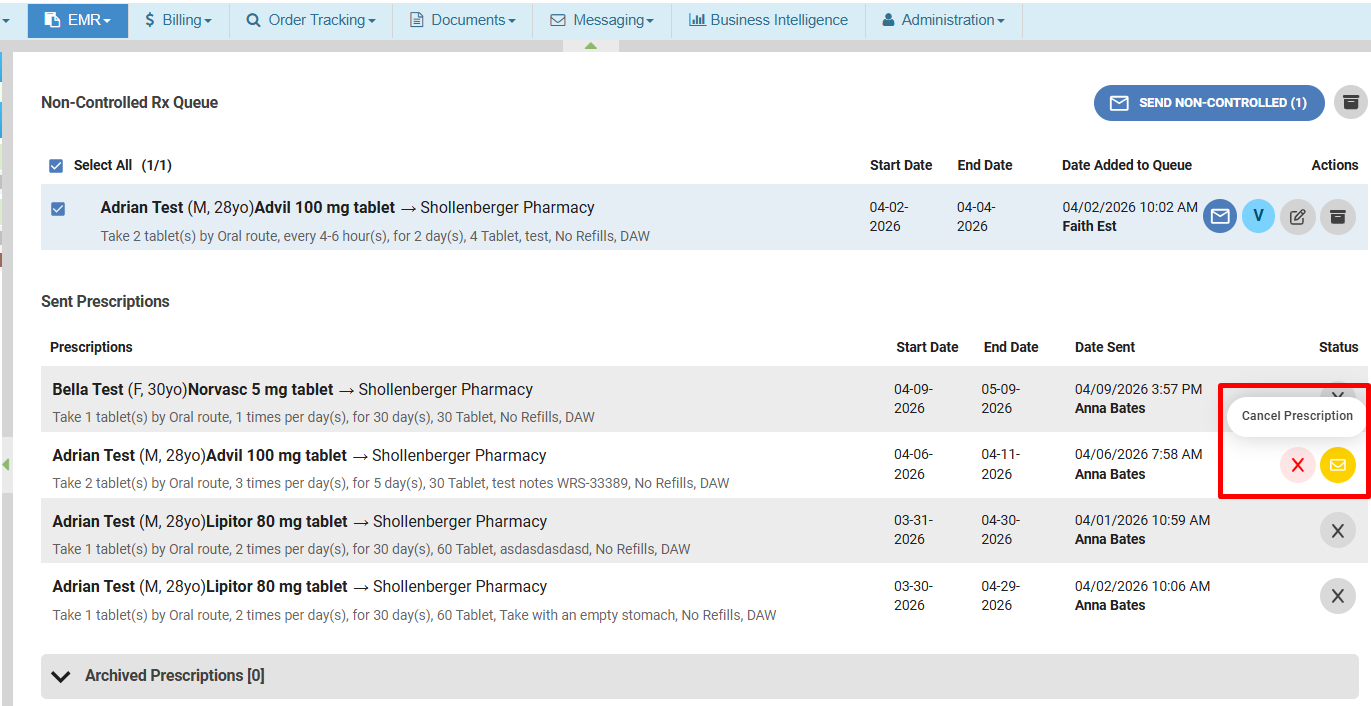
- Cancel from Delegated Prescription Queue
Providers can now cancel prescriptions directly from the Delegated Prescription Queue.- Navigate to the EMR → Delegated Prescription Queue (Controlled or Non-Controlled)
- Locate the Sent Prescriptions section
- Click on the RxCancel icon
- Click Cancel Rx to confirm cancellation

The system will process the cancellation and send the RxCancel request to the pharmacy. Meanwhile in the EHR, the status turns to a greyed out “X” icon.
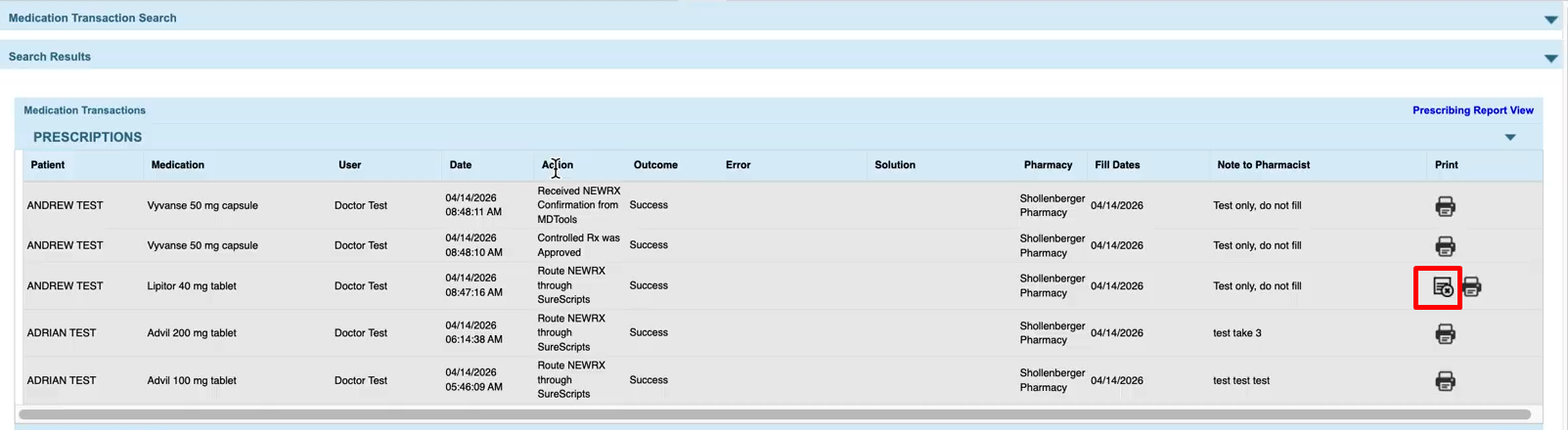
- Cancel from Medication Transactions Page
Providers can also cancel prescriptions from different key access points of Medication Transaction pages.Please note that in Medication Transactions, only the user who sent the actual prescription can see the RxCancel icon as this action is a user-specific permission.- Navigate to any of the Medications Transactions Page
- EMR All Notes → Medication Transaction
- Administration → Medication Management
- Patient’s Note → Medications Note page → Medication Transaction
- Search for transaction date(s)
- Locate the patient’s prescription
- Click on the RxCancel icon
- Click Cancel Rx to confirm cancellation

The system will process the cancellation and send the RxCancel request to the pharmacy. Meanwhile in the EHR, the RxCancel button disappears.
This prescription cancellation action is logged in Clinical Logs as well as in View All Actions.
- Navigate to any of the Medications Transactions Page
If you have any questions or need assistance, please contact your Account Manager.

If you would like more information, please contact your account manager.
Contact Your Account Manager