
AI Scribe Template Management
AI Scribe templates can be managed directly within the EHR to support efficient, specialty-aligned documentation during patient encounters. Practice Administrators are responsible for enabling available templates, while Providers can personalize their template selections based on their workflow and clinical needs.
Workflow
- Manage Scribe Templates in EHR (Practice Admin)
- Configure AI Scribe Template According to Provider Preferences
- Assign Specialty Taxonomy to Providers
Manage Scribe Templates in EHR (Practice Admin)
Templates configured by WRS Admin become available in the EHR based on their assigned scope—system-wide, practice-specific, or restricted by provider specialty taxonomy.
To make these templates available during AI Scribe use, they must be enabled in the EHR:
- Login to your EHR.
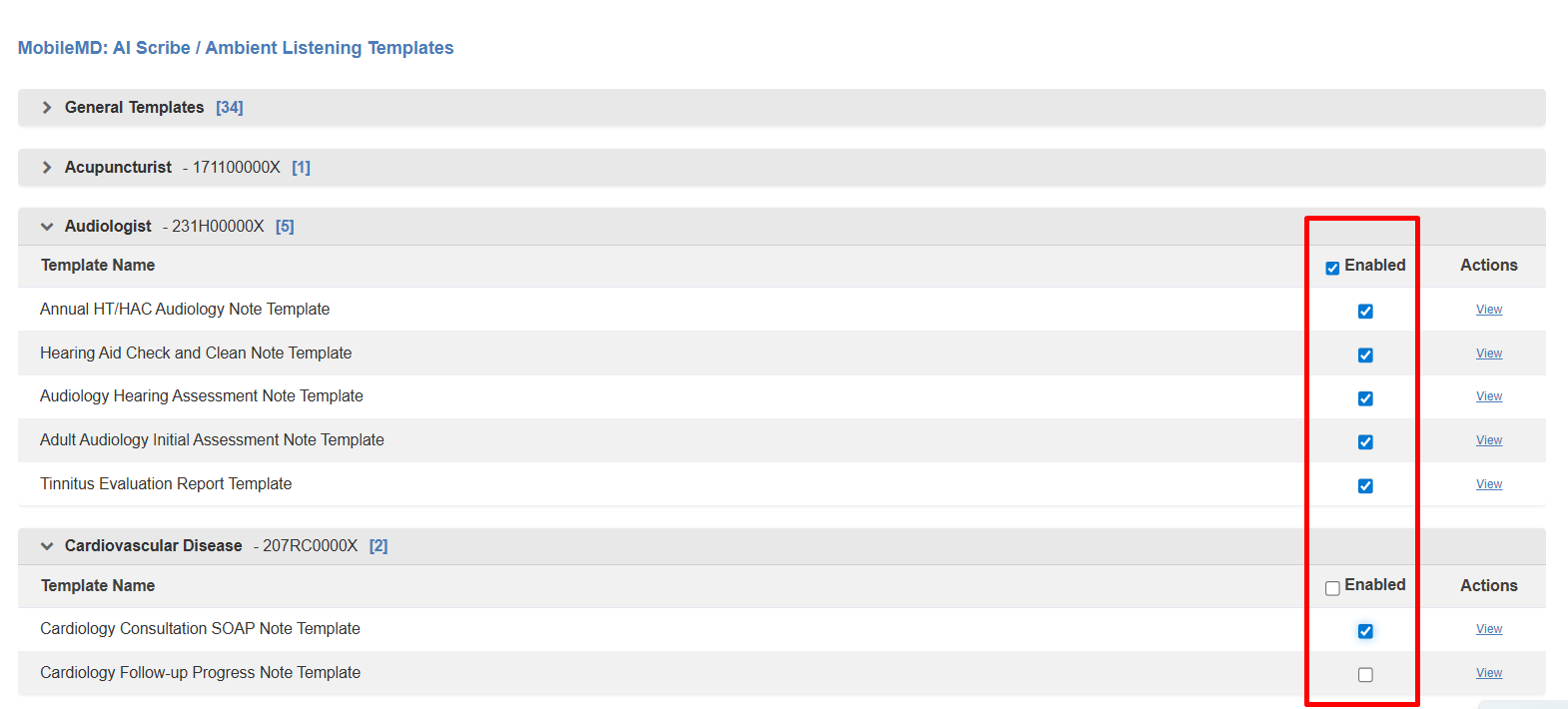
- Go to Administration → EMR Setup → Ambient Listening Templates.
- Enable the templates under each category, or select ALL.
Notes
Enabled templates will be available during Web based AI Scribe or MobileMD Ambient Listening use in patient encounters. Providers can further refine their preferred templates in the next step.
Configure AI Scribe Template According to Provider Preferences
Providers can select and manage AI Scribe templates based on their individual workflow preferences and clinical specialty.
Templates enabled by the Practice Admin will be available for selection. Templates configured as system-wide are visible to all providers, while templates restricted by specialty taxonomy will only appear to providers assigned to the corresponding specialty (see Assign Specialty Taxonomy to Providers).
- Login to your EHR.
- Navigate to Preferences → AI Scribe Template.
- Select and enable one or more preferred templates.
- Enabled templates will be set as default for the provider when using AI Scribe.
Example:
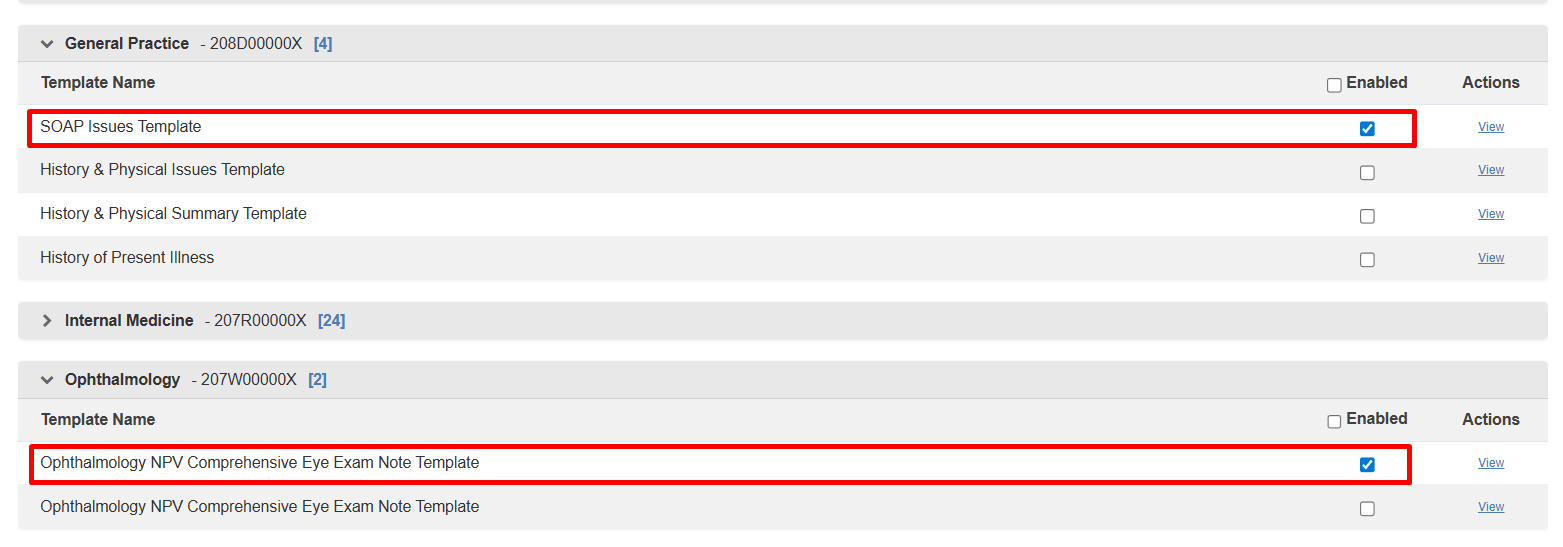
- Provider Name: Miranda Bailey
- Specialty Taxonomy: Ophthalmology – 207W00000X
- Enabled Preferences:
- SOAP Issues Template
- Ophthalmology NPV Comprehensive Eye Exam Note Template

Sample Workflow:
- Login as Provider (e.g., Miranda Bailey).
- During a patient encounter, create a new note.
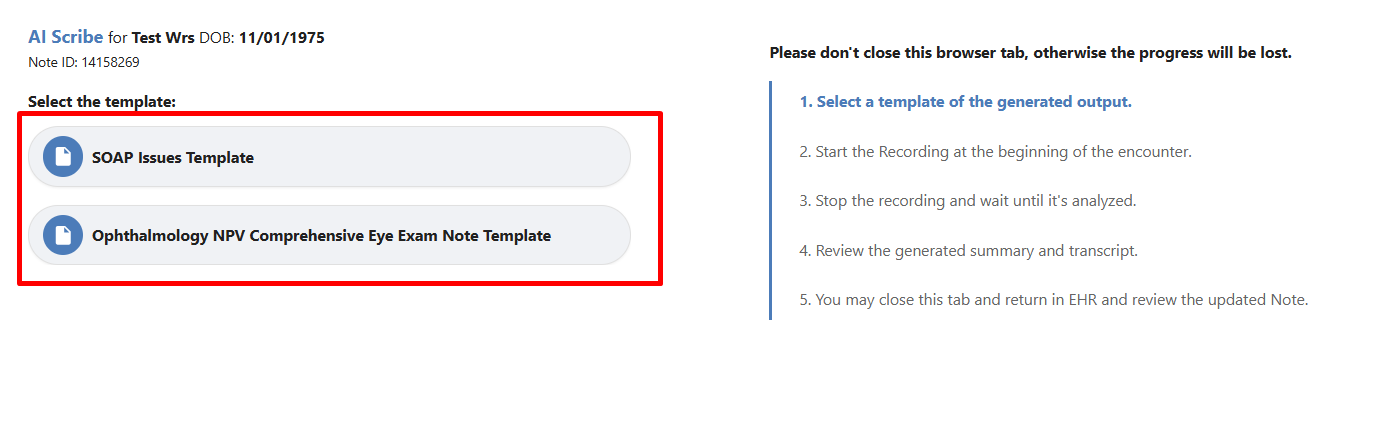
- Launch AI Scribe.
- In the AI Scribe page, only the templates configured in the Provider’s Preferences will be available by default.

Assign Specialty Taxonomy to Providers
Assigning a specialty taxonomy to providers ensures they have access to the appropriate AI Scribe templates based on their clinical role. This helps align documentation with specialty-specific workflows.
- Login to your EHR.
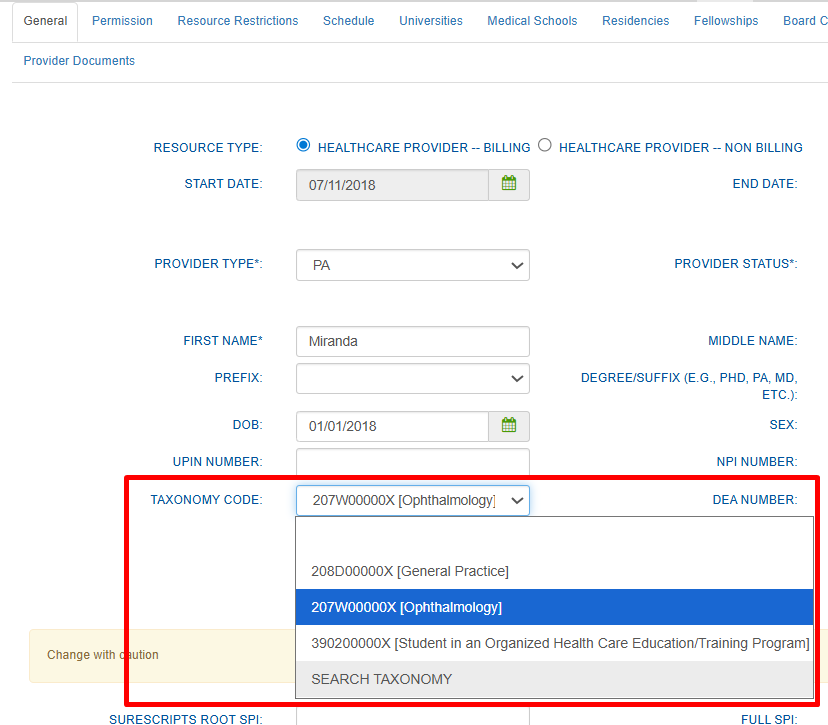
- Navigate to Administration → Resource Management → Resource Setup.
- Select the provider’s name.
- Under General → Taxonomy Code, search for or select the provider’s specialty taxonomy.

- Click Save to update changes.

Still no luck? We can help!
Contact us and we'll get back to you as soon as possible.
Submit a Request