
| To: | WRS Health Users |
|---|---|
| From: | WRS Development Team |
| Date: | 04/08/2026 |
| Re: | Surgery Management – Scheduling Queue |
Items in This Release
- New Feature: Scheduling Queue
We are pleased to introduce a new feature that enables practices to manage and schedule surgeries that do not yet have an assigned appointment.
This release enhances the ability to create surgery records as part of a waitlist, search and view unscheduled cases, and seamlessly transition them into the surgical workflow when ready.
Previously, surgery records required immediate surgery scheduling, making it difficult to track patients who needed surgery but were not yet booked. With this update, these patients can now be tracked and managed through a centralized, actionable workflow.
What’s New
- Create surgery records without assigning a schedule, allowing patients to be added to a waitlist (Unscheduled Surgeries).
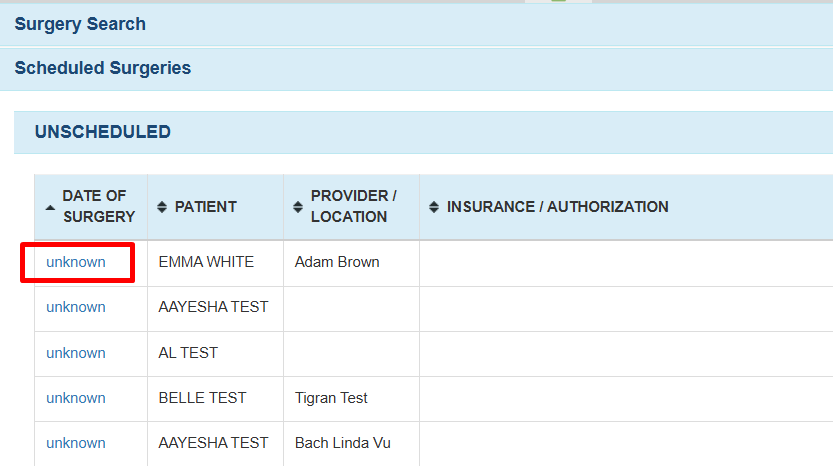
- View and search all unscheduled surgeries directly within Surgery Management.
- Use the “Unscheduled Surgeries” filter to quickly identify patients awaiting scheduling.
- Schedule surgeries directly from the unscheduled list in a single workflow.
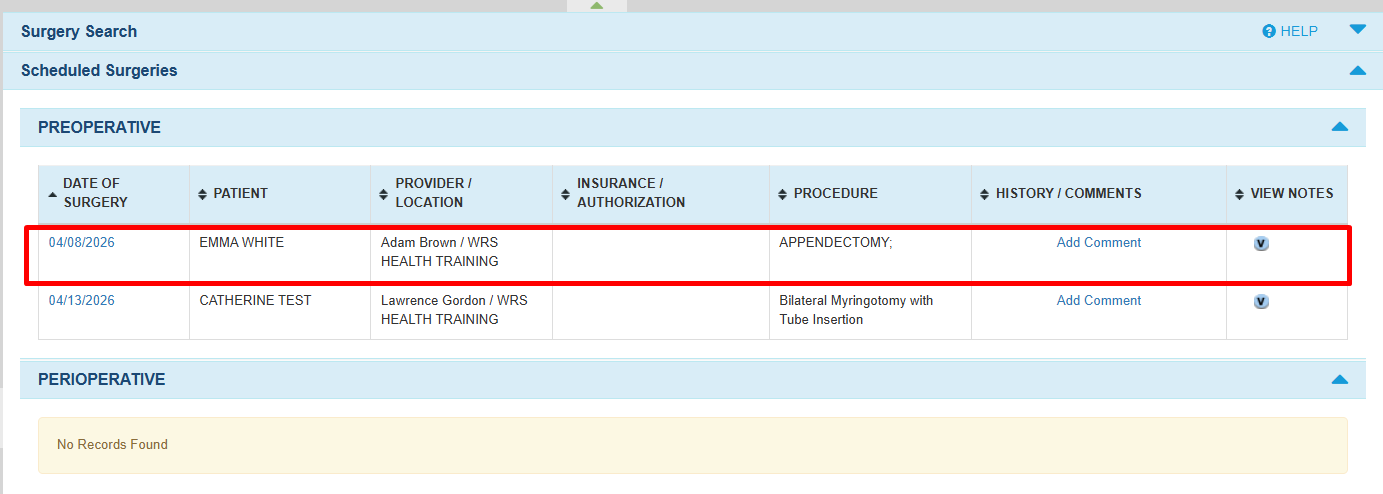
- Scheduled patients are automatically moved into the Surgery Queue (Pre-Operative stage).
Why This Matters for Your Practice
- Ensures patients requiring surgery are tracked—even before scheduling is confirmed.
- Provides clear visibility into unscheduled surgical cases for better follow-up.
- Simplifies the transition from surgical recommendation to scheduled procedure.
- Reduces the risk of missed, delayed, or overlooked surgeries.
How It Works
Create Surgery Record → Added to Unscheduled (Waitlist) → Search & View Unscheduled Surgeries → Schedule → Moves to Surgery Queue
- Create Surgery Record (Waitlist)
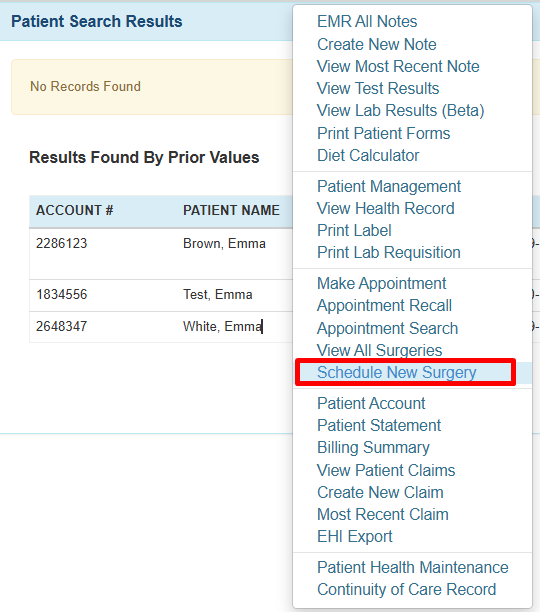
Users can create a surgery record without assigning a schedule.- In the EHR, search for a patient’s name
- On the results list, right + click on the patient’s name → Schedule a New Surgery

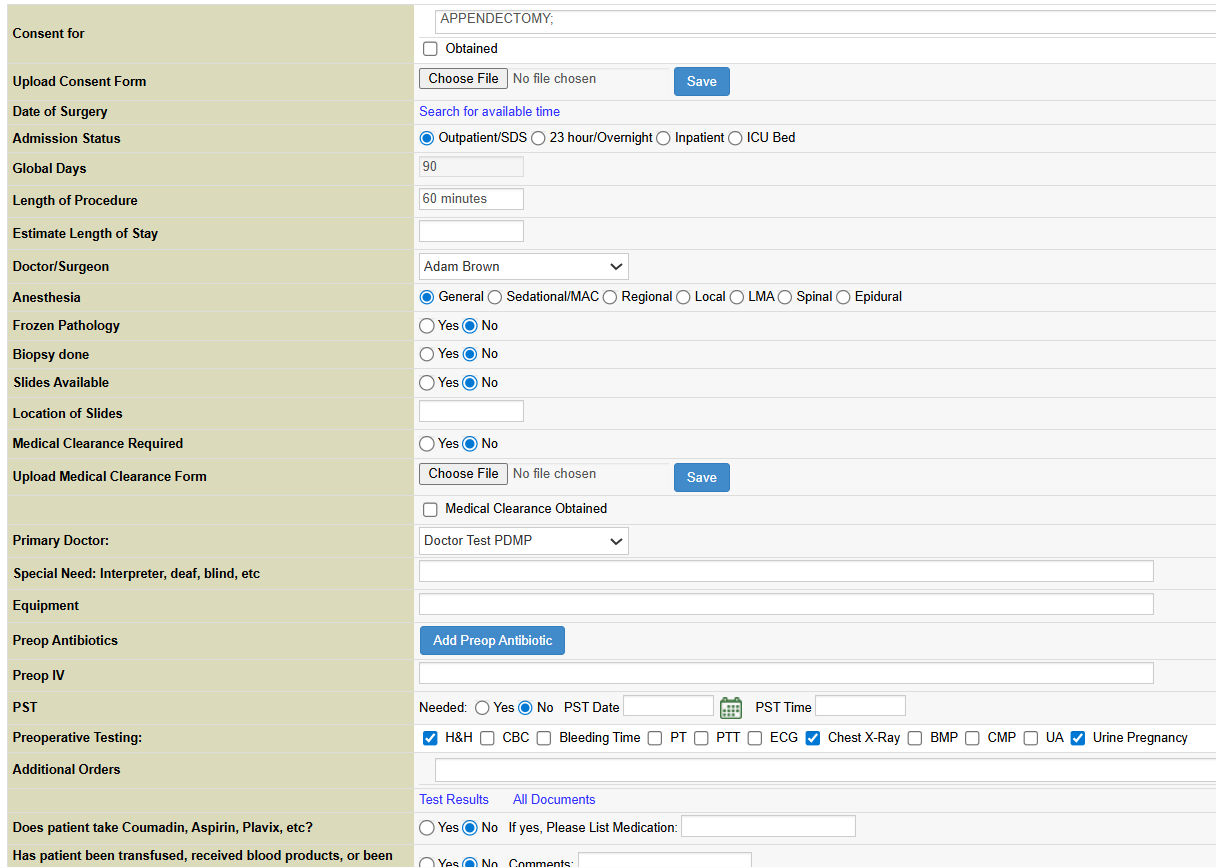
- Complete the Surgery Procedure page with the required procedure details
(Leave Date of Surgery blank if not yet scheduled).

- Click Save. The patient will be added to the Unscheduled Surgeries (waitlist).
- View and Search Unscheduled Surgeries
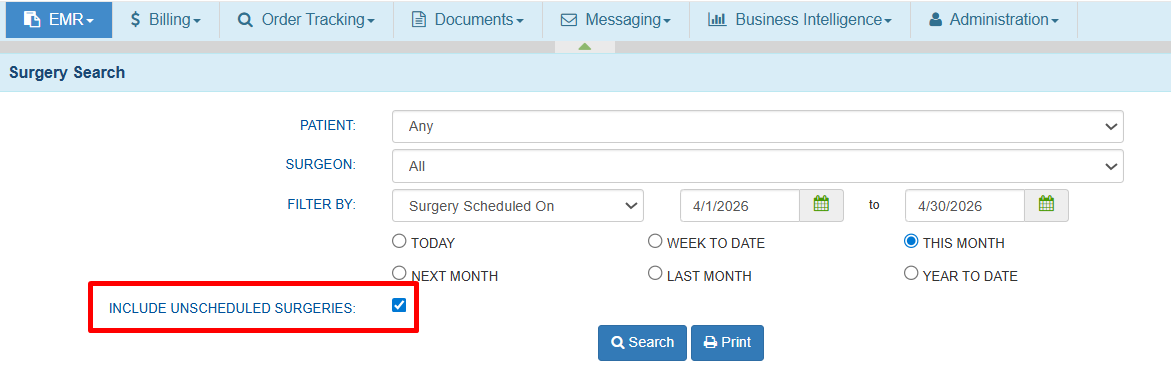
- Navigate to EMR → Surgery Management
- On the search page, enable Include Unscheduled Surgeries

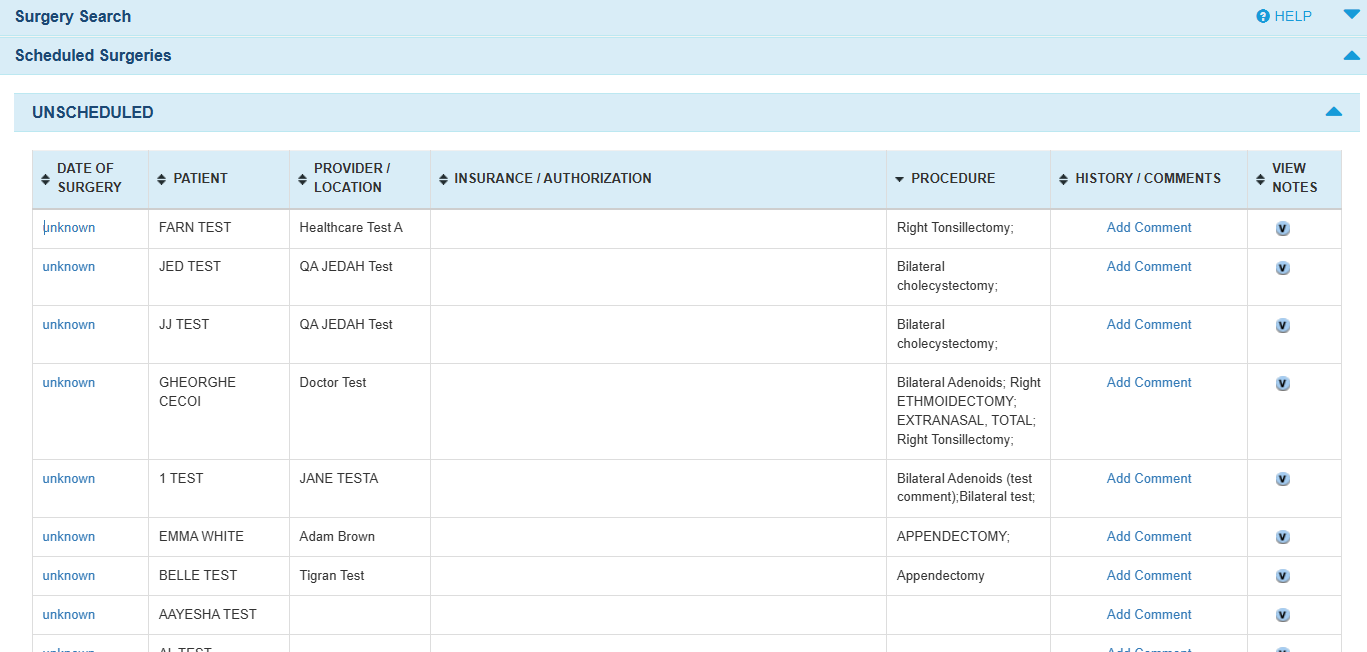
- The results will display patients without a scheduled surgery date.

- From the results list, users can:
- Identify unscheduled surgeries
- Review patient details
- Decide which cases are ready for scheduling
- Schedule from Unscheduled List
Users can quickly schedule a patient directly from the waitlist (Unscheduled Surgeries).- From the results list, click the “Unknown” action link.

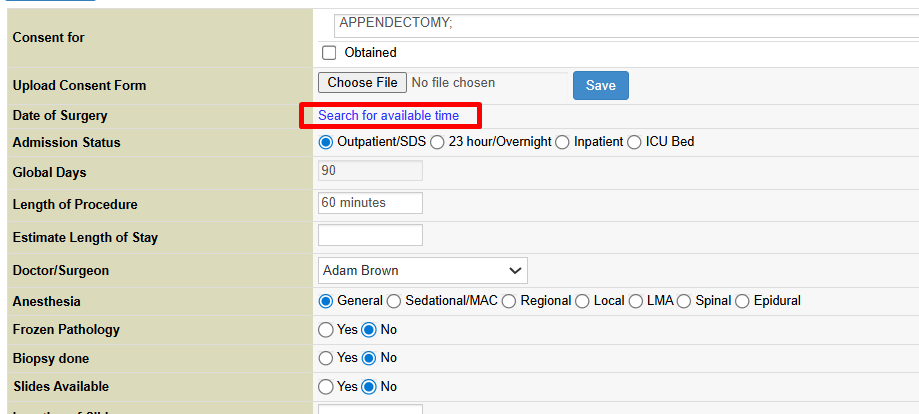
- On the Surgery Procedure page, click Search for Available Time

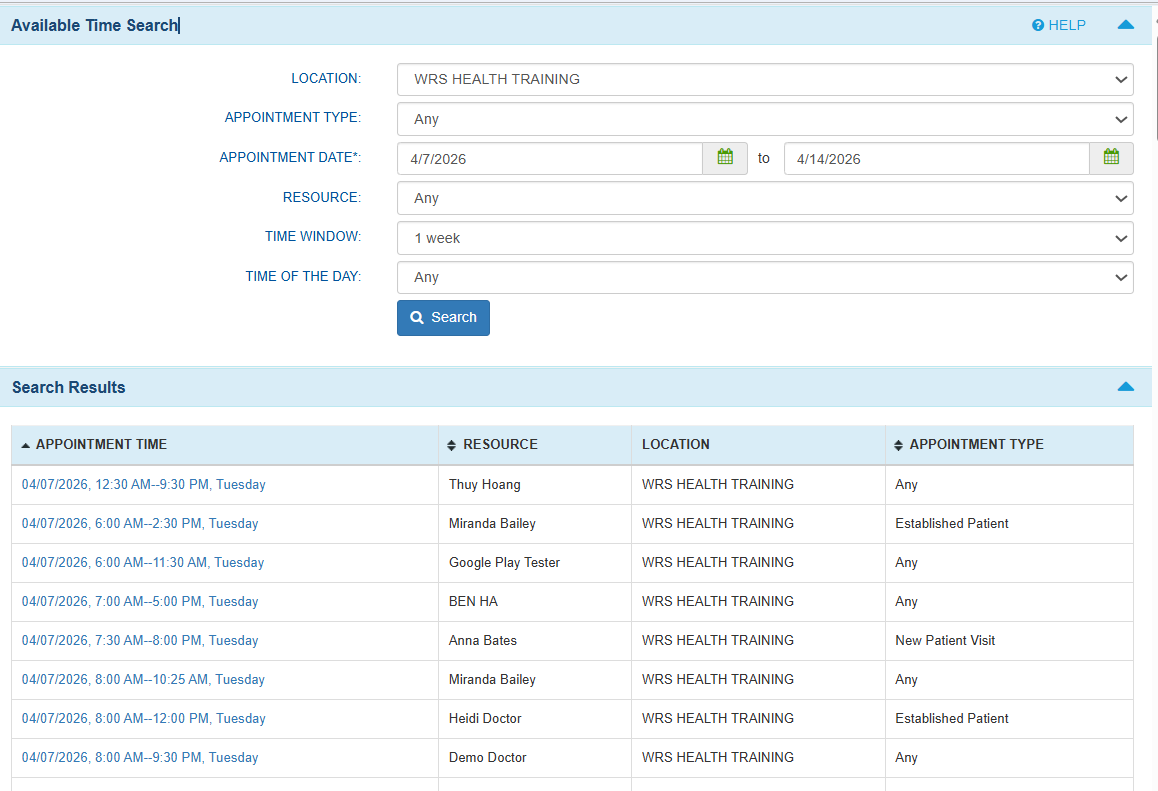
- To Schedule:
- Enter the desired appointment criteria (date, provider, etc.). Click Search.

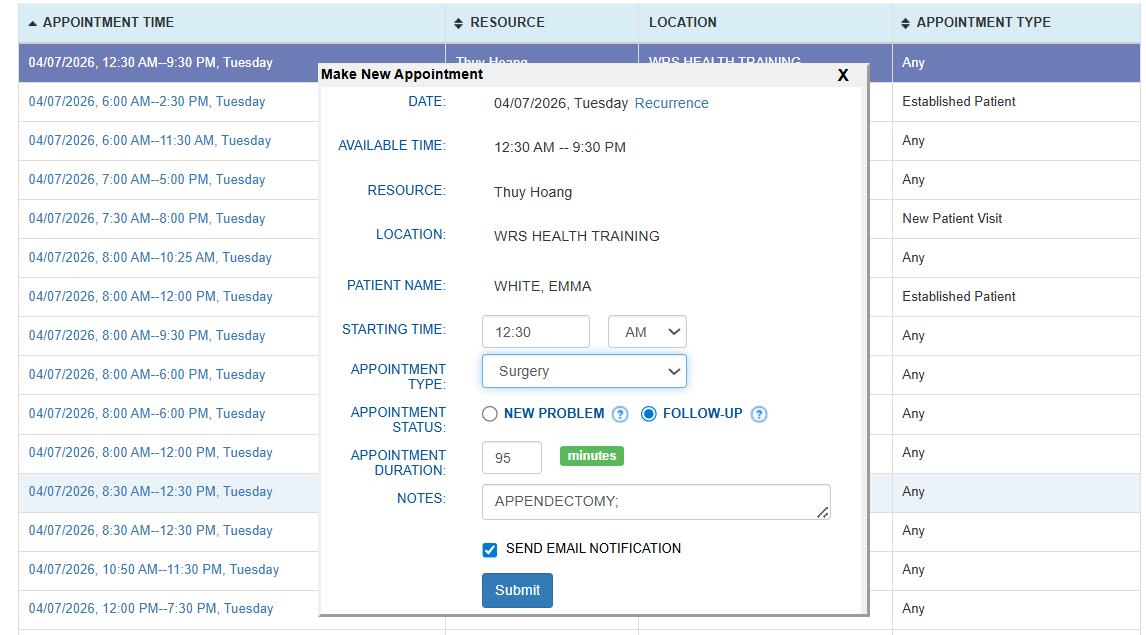
- Select the preferred time slot from the results.
- Create the appointment and click Submit

- Don’t forget to Save once the Date of Surgery is set.
- Enter the desired appointment criteria (date, provider, etc.). Click Search.
- After Scheduling:
- The patient is moved out of the the Unscheduled (waitlist)
- Automatically transitions into the Surgery Queue (Pre-Operative stage)

- From the results list, click the “Unknown” action link.

If you would like more information, please contact your account manager.
Contact Your Account Manager