
| To: | WRS Health Users |
|---|---|
| From: | WRS Development Team |
| Date: | 03/26/2026 |
| Re: | Eligibility Enhancement – Service Type Copay |
Items in This Release
- Service Type Copay Eligibility
We have implemented a patient’s copay determination based on service type and eligibility data to improve the accuracy and transparency of copay collection during the patient check-in process.
Previously, copay amounts could be derived from user-defined fields or generalized provider classifications such as Primary vs. Specialist, which may not always align with the service categories defined by payers in eligibility responses. As a result, the copay presented to patients during check-in could differ from the copay expected by the payer.
With this enhancement, the system uses copay values returned from eligibility (271) responses and applies them based on a provider-selected Copay Service Type aligned with payer service categories (such as Primary Care, Specialist, Urgent Care, Vision, or Mental Health).
What’s New
Service-Based Copay Determination
Practices can now configure copay categories based on the type of service provided (such as Primary Care, Specialist, Urgent Care, Vision, or Mental Health). This allows the system to select the appropriate copay amount based on the provider’s service type.
Practice-Level Copay Configuration
Administrators can configure which service categories apply to their practice through billing settings.
Improved Copay Transparency for Patients
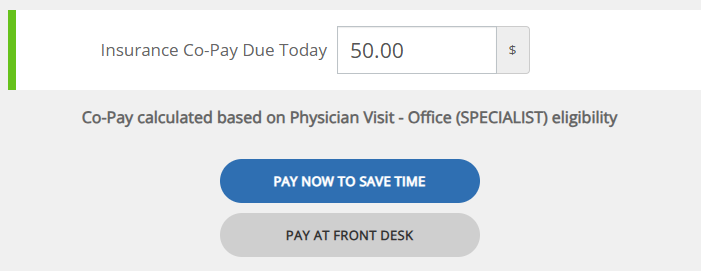
During patient portal check-in, patients will now see additional details about their copay, including the copay category used and their insurance plan information when available. This helps patients better understand the payment before completing the check-in process.
How It Works
When Copay Service Type is enabled for the practice, EHR Administrators can configure the eligibility copay type for each provider by following these steps:
- Navigate to: Administration → Resource Management → Resource Setup
- Search for and select the name of the provider
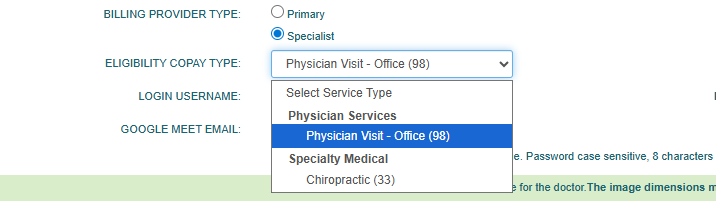
- On the General tab, locate the Eligibility Copay Type dropdown (placed under the Billing Provider type)
- Select from the dropdown the appropriate Service type, then Save changes.

What Happens Next
Once the provider’s service type is configured:
- The system determines the appropriate copay using data from the eligibility (271) response, aligned with the selected service type
- Insured patients will see their copay details during check-in and billing, including:
- Copay amount
- Copay type
- Relevant insurance context
For activation or assistance, please contact your Account Manager
.

If you would like more information, please contact your account manager.
Contact Your Account Manager